

A backend provides Agent Server and, when automations are enabled, Automation Server. Agent Server runs conversations and tools in a workspace: the folder, mounted project directory, container, or cloud sandbox where the agent reads and writes files. Automation Server manages schedules, events, and run lifecycle. Agent Canvas connects to these services and displays the state of whichever backend is selected.

Connecting to a Backend

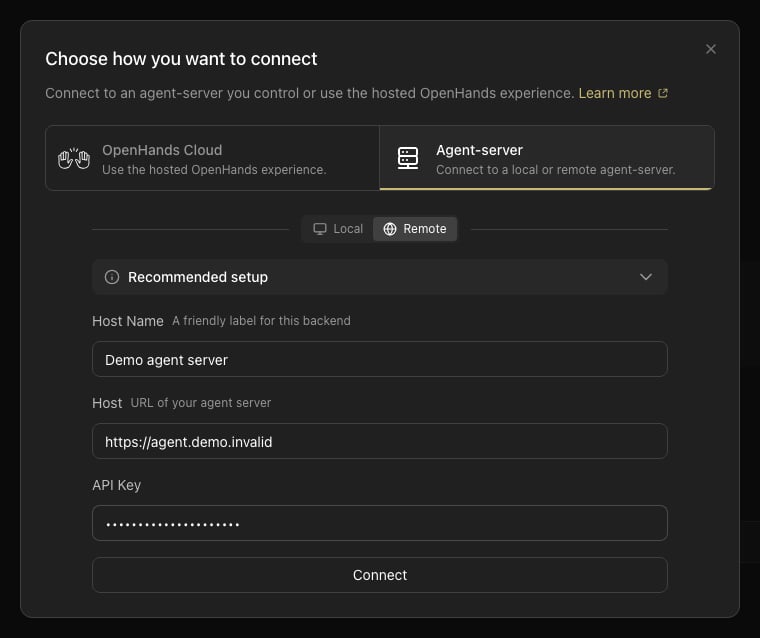
Any Agent Canvas frontend can connect to any Agent Canvas backend. Use the backend switcher in the UI to open Manage Backends, where you can add, edit, or remove entries. Each entry stores a display name, host URL, and an API key for authentication. Agent Canvas Add Backend dialog on the Agent Server tab with synthetic display name, host URL, and masked API key fields. Settings, LLM configuration, MCP servers, and automations are all scoped to the active backend — switching backends switches all of these. “Remote” describes how Canvas connects to a backend, not where that backend runs. A remote backend can be a separate process on the same machine, a self-hosted deployment on a VM or container platform, or a managed Cloud or Enterprise service.
Suspended Workspaces

On cloud and Enterprise backends, an administrator can suspend an organization or one user’s membership in it. When the selected organization is suspended, the backend refuses requests scoped to it with a 403 and Agent Canvas replaces the app with a message instead of leaving it open on top of failing requests.
  • If the organization is suspended, Canvas shows that the workspace is suspended and asks you to contact your administrator to restore access.
  • If only your membership is suspended, Canvas shows that your access to the workspace is suspended.
Below the message is a button for each of your other workspaces. Choosing one switches the active workspace and reloads its data. If the suspended workspace is the only one you can access, only the message appears. Super Admins are exempt and do not see the screen. The suspension is remembered for the current session. After an administrator resumes the organization, reload the page to clear it.